Anyone who keeps a dream journal knows the problem. You wake up with a strange image in your head, a staircase made of water or a lighthouse full of moths, and you want to sketch it before it fades. The sketch is the easy part. The hard part is the reference material: a time-lapse of someone shading with charcoal, a slow ambient track to keep you in the mood, a short clip of waves at night. Most of that lives on video platforms, and your commute has no signal.
This guide follows one hobbyist through that exact situation: an illustrator who draws dream scenes on the train and wants a small offline library of reference clips she has the right to keep. We will walk through a free browser tool for the job, EzyDownload, one step at a time, and say plainly where it works well and where it does not.
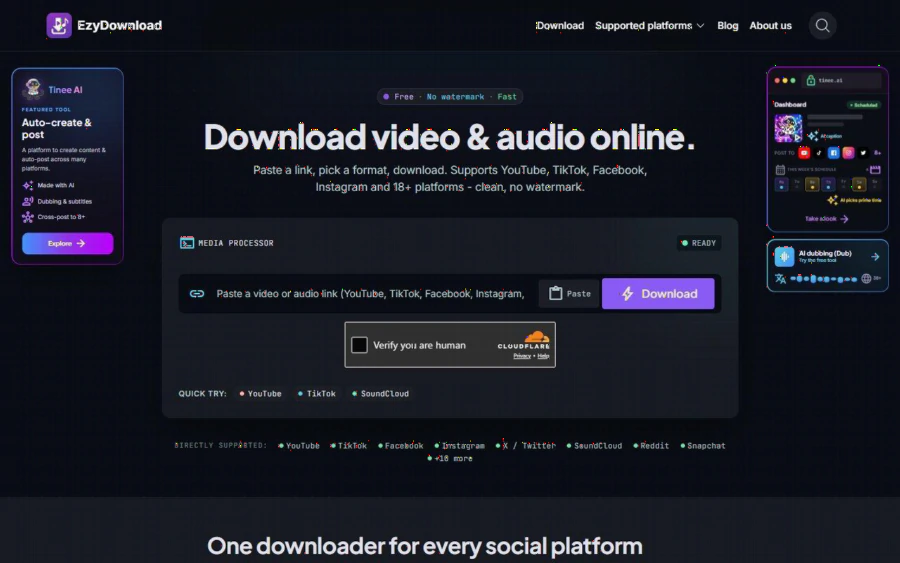
EzyDownload homepage with a single link box, format choice and a list of supported platforms
The scenario: a dream sketchbook with no signal
Our illustrator has three needs. First, a handful of short tutorial clips from artists who publish their work under licenses that allow saving or who have given her permission. Second, an ambient audio track or two for sketching sessions. Third, a way to do this without installing software on a work laptop or creating yet another account.
That last point matters more than it sounds. Hobby projects die when the setup costs more than the fun. A tool that lives in a browser tab, asks for no email and does not need an extension is easy to try on a Sunday afternoon and just as easy to forget about if it does not fit.
What EzyDownload is, based on its own pages
According to its homepage, EzyDownload is a browser-based downloader for video and audio. You paste a link, choose a format, and download. The site lists YouTube, TikTok, Facebook, Instagram, X, and SoundCloud as directly supported, and says it works with more than 18 platforms in total, including Reddit, Pinterest, Mixcloud and Dailymotion.
The pages describe the output like this. Video comes as MP4 (H.264/AAC) from 360p up to 4K, with 60 frames per second at the top tier. Audio comes as MP3 or M4A at 128, 192 or 320 kbps. MP3 files carry title, artist and cover art tags. The site says there is no paid plan, no sign-up and no cap on basic downloads, and that files are streamed from the source rather than stored on its servers. We took those claims from the site itself and did not test them at scale, so treat them as the vendor's description.
Step by step: from link to offline file
Here is the workflow our illustrator uses. It matches the three steps the homepage itself describes.
Step 1: Check that you may save the clip. Before anything else, look at the source. Is it your own upload, a Creative Commons video, or something the artist has told you that you can keep? The site's footer asks users to respect the copyright of the source platform, and that is the right default. Saving a clip for private study is one thing. Re-uploading it is another.
Step 2: Copy the public link. Use the address of the video page, not a private share link. EzyDownload only handles public media. Private accounts, paywalled content, content behind a login and DRM-protected material are outside what it processes, according to the site.
Step 3: Paste and verify. Open the page, paste the link into the box, and press the download button. When we loaded the page, a "Verify you are human" check from Cloudflare appeared under the box. It takes one click, but it is worth knowing about so it does not look like an error.
Step 4: Pick a format that fits the job. For a sketching reference, 720p MP4 is usually plenty and keeps the file small. For a time-lapse where you want to see pencil texture, go higher. For ambient audio, 192 kbps is a sensible balance, and 128 kbps is fine for voice-only commentary.
Step 5: Download and name the file. Rename it right away to something you will find later, such as the artist's name and the technique. A folder of files called "video (7)" is where good intentions go to die.
If you get stuck, the how-to guides on EzyDownload's blog cover formats, bitrate and codecs, and common errors such as invalid links, missing audio and slow downloads. The blog index lists 17 articles, with reading times from 3 to 22 minutes. Many titles are in Vietnamese, while the intro text on the page is in English, so expect a mixed-language experience.
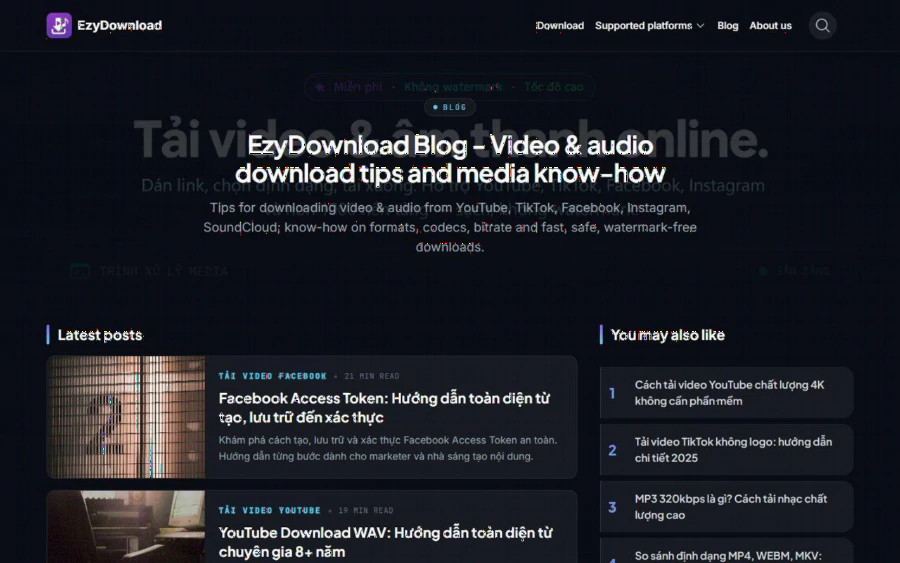
EzyDownload blog index with guides on formats, bitrate and download errors
Which platform page to use for which clip
One small convenience is that the site has a dedicated page per platform. Our illustrator uses the SoundCloud page for ambient mixes. Its headline reads "SoundCloud to MP3 Downloader," and the page says it keeps the metadata and cover art so a music library stays tidy. For sketching sessions that is a real plus, because a playlist with titles and artwork is easier to browse in the dark on a train than a pile of untitled files.
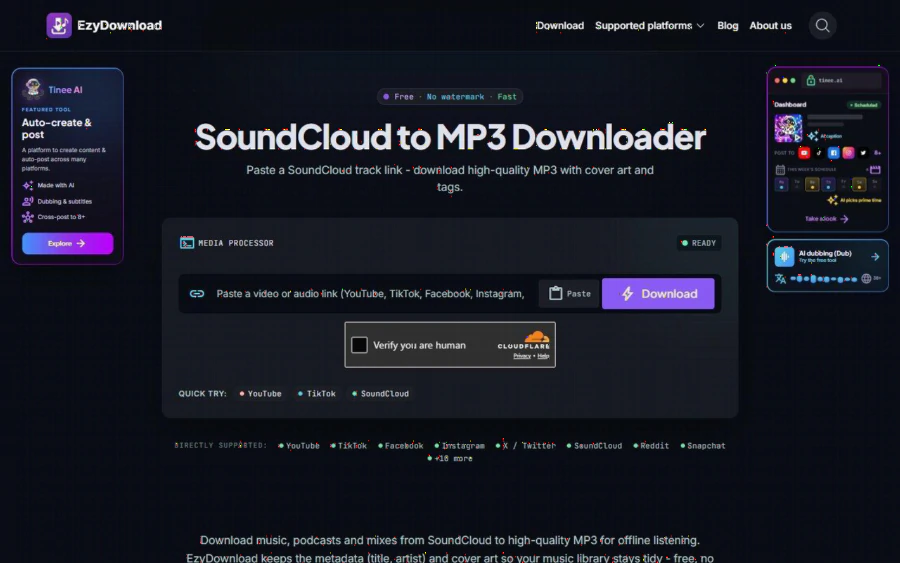
EzyDownload SoundCloud to MP3 page with the same paste box and a short description of cover art and tags
The same pattern applies to the pages for YouTube, TikTok, Facebook, Instagram and the rest. You do not need them, since the main box accepts links from any supported site, but they can make it clear that your platform is covered before you try.
Strengths worth naming
- No account, no cost. The site states that nothing is charged and no email is required. For a hobby, that removes a lot of friction.
- Quality choices up front. You see the available resolutions and bitrates and pick one, rather than getting whatever the tool decides.
- Tags and cover art on MP3. This is small but useful if you keep a real audio library.
- Works in a browser on desktop and mobile. The site says it supports iOS and Android as well.
Limits you should know before you start
Being straight about limits saves time.
- Public media only. If your reference is behind a login, a paywall or DRM, this tool will not get it. The site says so directly.
- Separate streams at high resolution. The homepage notes that some high-resolution sources deliver video and audio as separate streams. In that case you may need an external tool such as HandBrake or FFmpeg to merge them. That is a real extra step for a beginner.
- One item at a time. One of the blog articles states that the tool downloads one video at a time rather than whole playlists. If you want to archive fifty clips, expect fifty rounds of paste and download.
- Copyright is on you. The tool does not decide what you are allowed to save. Downloading a clip you have no right to keep can break a platform's terms or the creator's rights, and that risk stays with you.
- Promotional content. The site promotes a separate product, Tinee AI, in side panels. That is unrelated to downloading, so ignore it if you do not need it.
Who should use it, and who should not
It suits hobbyists, students and small creators who want an occasional offline copy of something they may legally keep, and who prefer a quick browser tool over installing software. If you are an illustrator, a journal keeper or a cross-stitch fan who studies tutorials offline, it fits.
It does not suit anyone who needs bulk archiving, scheduled downloads, or access to private or paid content. It also does not suit anyone hoping to get around copyright. If your work involves large libraries, a desktop application with batch features will serve you better.
How to get started today
Pick one clip you are allowed to keep. Open EzyDownload and paste the link, tick the human check, choose 720p MP4 or 192 kbps audio, and download it. Open the file on the device you will actually use. If it plays smoothly and looks sharp enough to draw from, you have your answer in under five minutes. If the quality is not enough, go one tier up and try again.
Then make the habit small. One folder called "Dream sketch references," one clip per idea, named clearly. When the staircase made of water shows up again at 3 a.m., you will have a reference ready, a pencil in hand and no signal needed.
The tool will not make you a better illustrator. It simply removes one obstacle between you and the page, which is often all a hobby needs.